
Could a few small shifts in your daily routine save hours each week and make teams feel smarter, not busier?
I wrote this guide to cut through the noise and show how ai tools in microsoft 365 can change the way you work in real moments that matter.
Here’s what I promise: clear starting points, simple moves you can try this week, and a practical strategy that keeps employees confident, not overwhelmed.
I’ll point to which features make the biggest difference for focus, meeting time, and handling company information.
Honestly, I’ve seen teams adopt new technology faster when steps stay small and outcomes are measurable.
This intro lays out what to expect: no theory, just grounded advice you can use now to improve how your team does work.



Table of Contents
The buzz and why now: how generative AI is reshaping work in Microsoft 365
There’s a moment when technology stops being a novelty and starts saving real hours—this is that moment.
Large language models now surface useful drafts, meeting summaries, and suggested actions inside everyday apps. I’ve seen teams reclaim serious time when scattered notes become clear outlines.
The benefits are tangible: faster prep, fewer errors, and more headspace for meaningful work. Organizations that move early with a simple strategy get the fastest payback.
Employees want clear guidance: what to try, what’s safe, and how success gets measured. Ask the right questions now—Which processes waste the most time? Where would a 30% boost change outcomes?
| Focus | Early Win | Impact (weeks) |
|---|---|---|
| Notes to drafts | Proposal templates | 2–4 |
| Email summaries | Faster responses | 1–2 |
| Meeting recaps | Action lists | 2–3 |
- Pilot where the pain is obvious.
- Share wins quickly so momentum spreads.
Understanding Microsoft 365 AI fundamentals: Copilot, large language models, and the Microsoft Graph
Let’s unpack what powers smart suggestions inside your daily apps and why that matters for real work.
I think of Copilot as “work AI”: large language models shaped by your microsoft 365 context to draft, summarize, and connect information where you already work.
The microsoft graph is the backbone. It links emails, files, meetings, and chats so suggestions are grounded in your reality, not generic examples.

📚 Read Next
Practical Application: AI needs data access. Ensure your cloud setup is ready with How to Use OneDrive for Business.
Big Picture: These tools are changing the workforce. Understand the impact in The Ultimate Guide to Future Proof Your Career.
Efficiency Boost: Early users of Copilot for Microsoft 365 reported being 29% faster at specific tasks like searching and writing.
Work IQ: data, memory, and inference
Microsoft highlights three pillars that explain why Copilot feels timely.
- Data — your emails, documents, and records feed the system so outputs match actual context.
- Memory — patterns and preferences shape tone and suggestions over time.
- Inference — models connect dots and suggest next steps you might not have flagged.
That’s the power: models don’t replace judgment. They accelerate drafts, outlines, and summaries you can refine.
Start simple: pick one use case per team where better information flow would reduce rework. With guardrails, these capabilities become a force multiplier rather than noise.
Get your house in order: preparing data, permissions, and security for Copilot
Clean signals beat clever features: tidy data and clear permissions keep suggestions helpful, not harmful. If your stores are messy, a suggestion engine will simply surface what people already see—and that can expose sensitive content at the worst moment.
I’ve seen oversharing bite teams hard. When Delve first surfaced documents, it revealed old access patterns. Now that suggestions draw from the Graph, the impact grows.

Spotting oversharing risks before they surface
Start with a simple access review: who can see what, and why. Tie permissions to current business needs, not legacy habits. Prioritize HR, finance, and executive libraries where a single mis-share creates company-wide fallout.
SharePoint Advanced Management, Syntex, and third‑party help
Use SharePoint Advanced Management within Syntex to find and fix loose permissions fast. Third-party vendors like Quest, SysKit, and Rencore offer visualization and scale to reduce risks without blocking work.
Using PnP PowerShell to audit sharing
If budgets are tight, PnP PowerShell scripts can audit sharing links, external users, and inheritance. Combine that with simple rules: least privilege by default, time-bound sharing, and routine reviews of guest access.
- I’ve seen oversharing surface content unexpectedly—if someone has access, a suggestion may surface it.
- Coach employees to use the “minimum necessary” mindset; permissions are a security step, not a favor.
Who should get Microsoft 365 Copilot first? Pricing, per user per month, and rollout strategy
Start with the roles that touch documents and decisions every day. That’s where payback is fastest and change is visible.
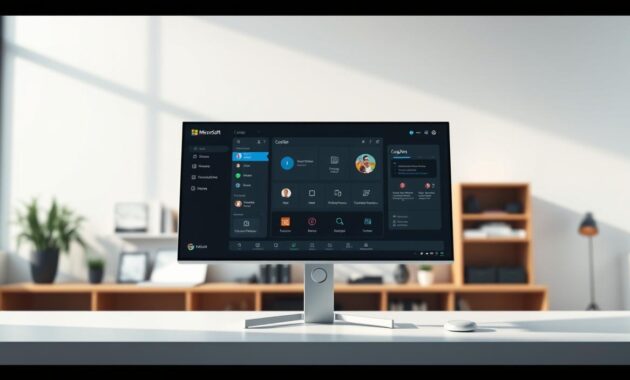
Pricing guidance matters: common plans list roughly $30 per user per month. For most organizations that makes broad licensing costly. So choose seats carefully.
Prioritizing high‑impact roles
I recommend starting with executives, managers, and sales teams. These users create decks, contracts, and briefs that benefit most from quick synthesis.
Focus on people who live in documents and presentations. Time saved on prep and review compounds each month.
Even with powerful AI assistants drafting your emails and analyzing your spreadsheets, local system errors can still disrupt your workflow. Knowing where to find official Windows troubleshooting guides ensures your AI tools run smoothly without unexpected operating system interruptions.
Budgeting and rollout strategy
Plan a focused pilot. Measure time saved, quality gains, and adoption before you expand.
| Priority | Why | License cost |
|---|---|---|
| Executives | Fast decision prep, concise briefs | $30 per user per month |
| Managers | Project summaries, performance notes | $30 per user per month |
| Sales | Proposals and customer syntheses | $30 per user per month |
- Keep licensing flexible and shift seats as needs change.
- Communicate clear expectations so users get immediate benefits.
- Pair access with short coaching to capture value fast.
Honestly, a focused approach gives the best return. Start small, measure, and scale a strategy that fits your organization.
Prompting basics for beginners: getting quality responses from language models
When you ask with purpose, language models give work you can shape fast.
Start with intent: name the outcome, the audience, and the style. A clear instruction shortens editing time and makes the first response far more useful.
Clear prompts, personas, and outcomes
Tell the system who to be—“respond as a marketing writer” or “act as a technical editor.” Personas align tone and structure so the response matches your needs.
Be specific: add constraints like length, format, and whether you want a first draft or a final version. Paste key information and say what to keep, cut, or reframe.
Validate, refine, repeat
Always check facts. Treat each response as a draft, then refine the prompt when results miss the mark. Add examples, point out what was off, and try again.
- I teach teams to state intent, audience, and style first—language becomes clearer and responses get sharper.
- Keep a shared prompt library so employees learn faster and don’t reinvent the wheel.
- Small, daily practice (five focused minutes) builds skill and saves time.
| Action | Why it helps | Expected time saved |
|---|---|---|
| State outcome + audience | Sharper response, less editing | 10–20 minutes per task |
| Use a persona | Tone and structure align with needs | 5–15 minutes per draft |
| Validate facts | Reduces errors and rework | Varies by task |
| Refine prompts | Improves future responses | Compounds over time |
ai tools in microsoft 365 in action: practical Copilot scenarios that save time
A handful of everyday scenarios reveal how Copilot helps people finish work faster.
Word
Draft a proposal from meeting notes, then refine tone and structure
I’ve watched Copilot turn messy meeting notes into a clear proposal with sections and bullets you can edit fast.
Start with the notes, tell Copilot the audience and tone, then refine. It saves minutes that add up to real time back each week.
Teams and business chat
Synthesize project information from multiple sources
Inside Teams it pulls updates from chats, documents, and calendars so you don’t chase context across apps.
Outlook
Summarize long email threads and draft replies
Copilot creates short summaries of long email threads and drafts reply options that protect your focus time.
Power Platform
Accelerate workflows with Power Automate and document libraries
Connect Power Automate to a SharePoint document library and Azure OpenAI to extract metadata, translate, and tag documents.
This helps generate Q&A, surface sentiment, and flag inappropriate content so discovery is faster and safer.
- In Word, messy notes become a near-ready proposal.
- Teams pulls project context so the whole business moves faster.
- Outlook summaries cut time spent reading long threads.
- Document libraries get tagged and summarized via Power Automate.
| App | Action | Benefit |
|---|---|---|
| Word | Draft from notes | Faster proposals |
| Teams | Aggregate updates | Clearer context |
| SharePoint + Power | Auto‑tag & summarize | Speed discovery |
Beyond Copilot: Azure OpenAI, organizational data, and secure assistants
Beyond the apps most teams use daily, you can host private, company-aware assistants that keep sensitive content inside your cloud. I’ve helped teams build these so confidential records never leave their tenant boundary.
Private conversational experiences without public exposure
Azure OpenAI lets your organization offer ChatGPT-like responses while keeping raw records private. Responses can be grounded in your HR pages, product docs, or internal FAQs so answers reflect company policy and history.
RAG with HR, knowledge bases, and document libraries
Retrieval-augmented generation (RAG) connects queries to your SharePoint libraries and other sources. Paired with Power Automate, teams can auto-summarize, translate, extract metadata, and flag inappropriate content where work already happens.
- Practical wins: private assistants that respect access rules and reduce exposure risk.
- Use agents like Azure AI Bot Service and Power Virtual Agents to deploy helpers without heavy code.
- Start narrow, measure value, then expand—this gives your business a strategic advantage without breaking security.
Honestly, defining access and teaching employees what’s safe fast makes adoption confident and steady. Treat these assistants as part of your roadmap: secure first, useful fast, and then broader.
Microsoft 365 AI Tools (What’s Included and What They Actually Do)
When people search for Microsoft 365 AI or Microsoft 365 AI tools, they usually want one thing: a clear list of what’s available inside Microsoft 365 and how each tool helps in real work. Below are the most practical, high-ROI AI features you can use today.
Microsoft 365 AI in Word (Draft, Rewrite, and Summarize)
Microsoft 365 AI can help you:
- Draft first versions of documents (reports, proposals, emails turned into docs)
- Rewrite for tone (formal, friendly, concise)
- Summarize long content into bullets and action items
- Create outlines and improve clarity in seconds
Best for: documents, policies, SOPs, client reports, resumes.
Microsoft 365 AI in Excel (Explain, Analyze, and Build Faster)
With Microsoft 365 AI tools in Excel, you can:
- Ask for quick insights (“what’s driving this change?”)
- Summarize a dataset in plain English
- Generate formula suggestions and explain complex formulas
- Create quick analysis structures (categories, trends, anomalies)
Best for: dashboards, budgeting, KPI tracking, performance reporting.
Microsoft 365 AI in PowerPoint (Turn Notes into Slides)
Microsoft 365 AI tools can speed up slide creation by:
- Turning a rough outline into a slide structure
- Rewriting slide text to be clearer and more persuasive
- Creating speaker notes and tighter summaries
Best for: presentations, training decks, sales proposals.
Microsoft 365 AI in Outlook (Write Better Emails Faster)
Microsoft 365 AI in Outlook helps you:
- Draft replies based on the thread context
- Shorten or expand an email
- Switch tone (more professional, more direct, more empathetic)
- Extract next steps from long email chains
Best for: client communication, support workflows, recruiting outreach.
Microsoft 365 AI in Teams (Meetings, Notes, and Action Items)
In Teams, Microsoft 365 AI tools are most valuable for:
- Meeting summaries and key decisions
- Action items with owners and deadlines
- Quick catch-up if you joined late or missed a meeting
Best for: management, project delivery, recurring meetings.
SharePoint Syntex (AI for Content and Document Processing)
If your organization lives in SharePoint, SharePoint Syntex is one of the most powerful Microsoft 365 AI tools for automating how documents are understood, labeled, and processed.
What Is SharePoint Syntex?
SharePoint Syntex uses AI to help you:
- Automatically classify documents (contracts, invoices, policies, resumes)
- Extract key information (names, dates, amounts, IDs)
- Apply consistent metadata and retention rules
- Improve content search and compliance workflows
Best for: teams with high document volume and repeated document types.
SharePoint Syntex AI Builder (When It’s Worth Using)
SharePoint Syntex AI Builder is useful when you want custom extraction and classification models, especially if:
- You have a consistent document template (invoices, forms, agreements)
- You need structured data extracted into columns/fields
- You want automation that reduces manual review time
Practical examples:
- Extract invoice totals and due dates into SharePoint columns
- Tag HR documents by type and store them with correct retention rules
- Classify contracts and surface key clauses for review
SharePoint Syntex Pricing (Quick Reality Check)
SharePoint Syntex pricing can vary depending on your licensing plan, region, and whether you add extra capabilities. The key point is this:
- If you process a lot of documents monthly, Syntex often pays for itself in saved time.
- If you only process documents occasionally, you may be better off with lighter workflows first.
Tip: Before committing, list your top 3 document processes (e.g., invoices, contracts, onboarding docs) and estimate the hours spent monthly. If Syntex removes even 30–50% of that manual work, ROI becomes obvious.
Syntex vs “Regular SharePoint”
Regular SharePoint stores and organizes files well. SharePoint Syntex adds:
- Document intelligence (classification + extraction)
- Automated metadata and governance
- Faster retrieval and better search outcomes over time
Conclusion
Start with a narrow problem and show how a focused change returns real hours. Pick one workflow where value is obvious and run a short pilot that proves the win.
Give early seats of microsoft 365 copilot to people closest to documents and decisions. Measure time saved per user each month so next steps are data driven.
Clean up access and permissions first. One missed folder can undo years of trust and harm security.
Provide short playbooks on prompting and follow a practical rollout that matches how teams already work. Keep the experience simple and useful.
Look beyond the app and consider private assistants that use your own data. Honestly, I’ve seen teams go from wary to energized after one clear improvement—ship that win and build from there.
FAQ
What is Copilot and how does it work within Microsoft 365?
How does the Microsoft Graph power more relevant responses?
What are the main security concerns when enabling Copilot?
Who should get Copilot first in an organization?
How should organizations budget and license Copilot?
What practical scenarios save time with Copilot in Word, Teams, and Outlook?
How do I write prompts to get reliable results from large language models?
Can we run private, organization‑only assistants instead of public models?
What tools help audit and tighten sharing across an organization?
What are the immediate benefits and limitations of adding Copilot to daily work?
How do memory, data, and inference create better “work IQ” for assistants?
What steps should IT and security teams take before wide rollout?

I’m Rodrigo Durães, founder of CareersForge — the world’s leading career platform — and recognized as one of the most comprehensive and experienced career and life coaches globally. With multiple academic degrees from the world’s top universities and over two decades of experience as a CEO, my mission is clear: to help people unlock their full professional potential through honest, strategic, and proven content.